Geyser lets Minecraft Bedrock players (phones, consoles, and Windows) join your Java Edition server. This guide shows how to connect Geyser to playit with a Minecraft Bedrock (NetherNet) tunnel.
Running Microsoft’s Bedrock Dedicated Server instead of a Java server? Follow Setting up a Minecraft Bedrock server with playit .
What you need
- A working Paper or Fabric Java server. If you don’t have one yet, see How to setup a Minecraft Java Server .
- playit program version 1.1.0 or newer - [playit.gg]
- The latest Geyser - [geysermc.org]
- Floodgate (recommended) - [geysermc.org]
Floodgate lets Bedrock players join without owning Minecraft Java Edition. Without it, Bedrock players need to sign in with a Java account.
1. Install Geyser and Floodgate
Download the Geyser and Floodgate files for your server type:
- Paper: download the Spigot versions and put both
.jarfiles in your server’spluginsfolder. - Fabric: download the Fabric versions and put both
.jarfiles in your server’smodsfolder. Fabric also needs the Fabric API mod - [modrinth.com]
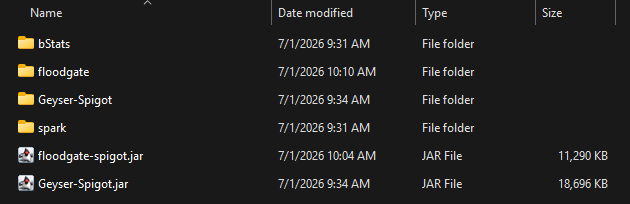
Start your server once so Geyser creates its config file, then stop the server.
2. Create the tunnel
Make sure the playit program is running, then go to Tunnels and click new tunnel.
- Give your tunnel a name.
- Choose Minecraft Bedrock (NetherNet) as the tunnel type.
- Tick the box to confirm NetherNet is experimental.
- Leave the other settings as they are and finish creating the tunnel.
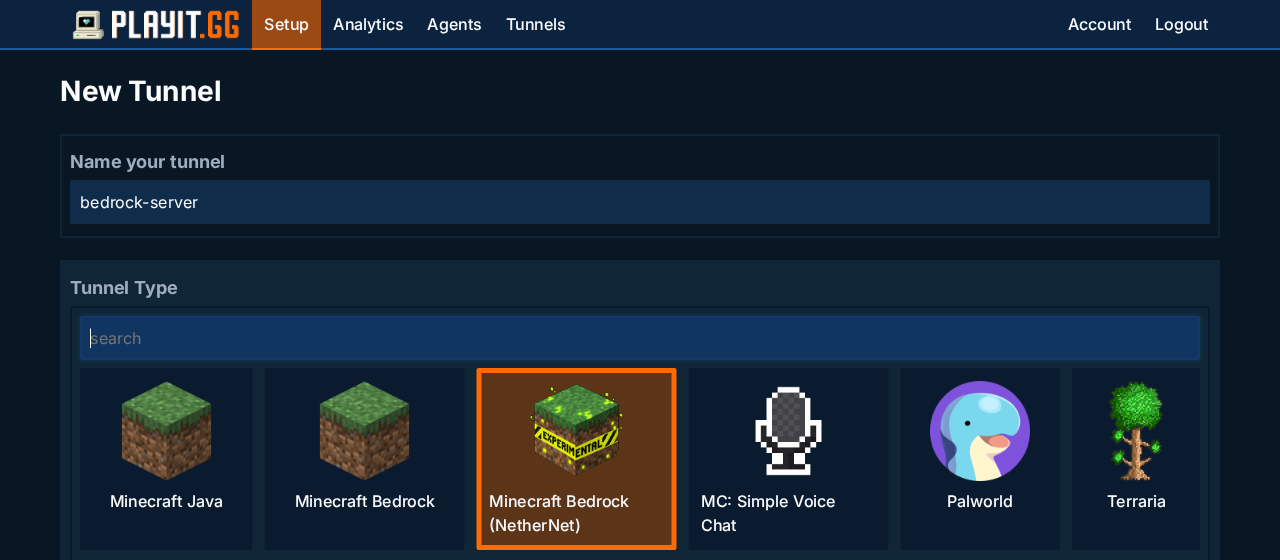
Make sure you pick Minecraft Bedrock (NetherNet), not Minecraft Bedrock.
3. Copy your Geyser settings
Open your new tunnel and click Configuration help.
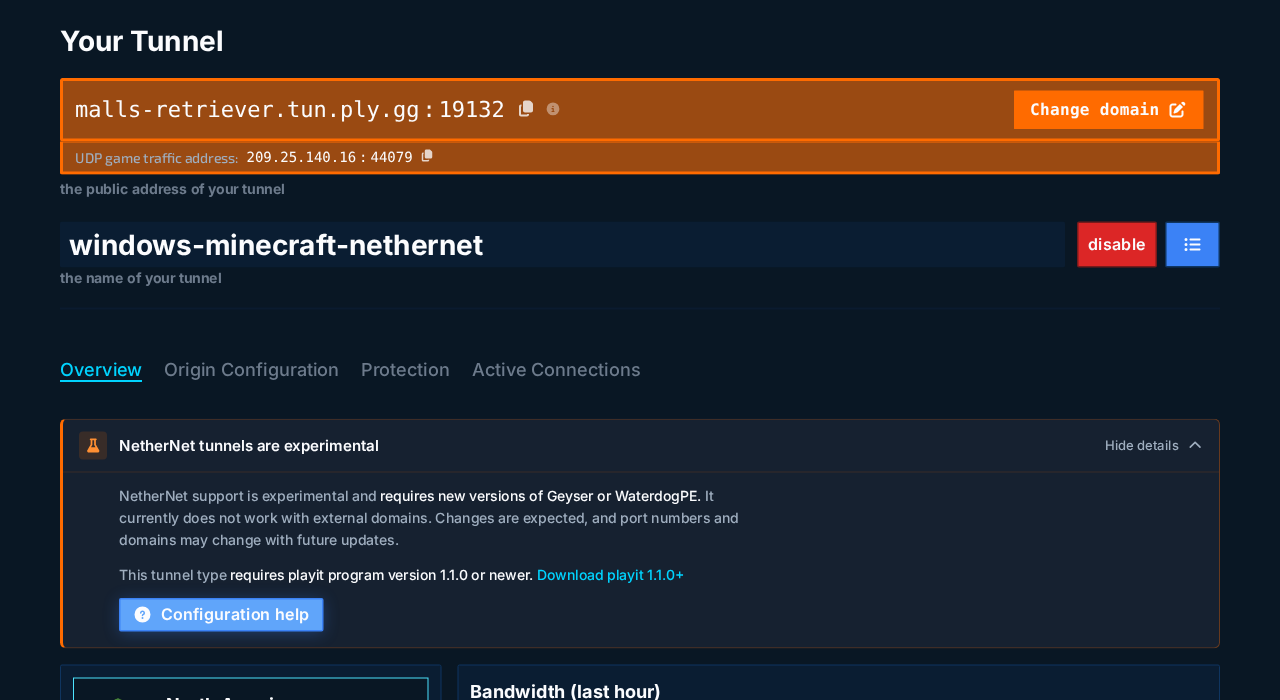
Select the Geyser tab, then click Copy. The copied settings already include your tunnel’s private token.
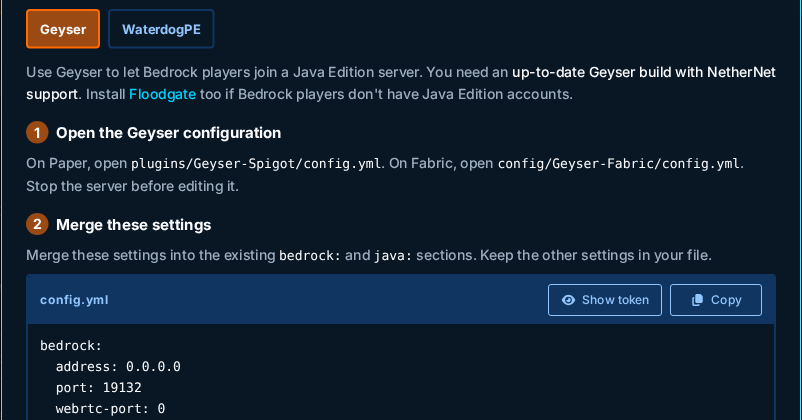
Keep your token private. Anyone with it can attach a server to your tunnel.
Now open Geyser’s config file:
- Paper:
plugins/Geyser-Spigot/config.yml - Fabric:
config/Geyser-Fabric/config.yml
Find the bedrock: section near the top of the file. Change each setting so it matches the settings you copied, and add any that are missing. Do the same for auth-type under java:. Leave all other settings alone.
Keep the spaces at the start of each line exactly as they are in the copied settings. YAML files break if the spacing is wrong.
Not using Floodgate? Set auth-type to online instead of floodgate.
4. Start your server
Save the file and start your server. Look for this line in the console:
Registered with the external signaling service
If you see it, Geyser is connected to playit.
5. Join from Minecraft Bedrock
In Minecraft Bedrock, go to Play > Servers > Add Server and enter:
- Server Address: your tunnel address, for example
malls-retriever.tun.ply.gg - Port:
19132
Share the same address and port with your friends.
Java players
The NetherNet tunnel is only for Bedrock players. To let Java players join too, create a second tunnel with the Minecraft Java type.
Chat for Bedrock players
If Bedrock players can’t chat, open server.properties and set enforce-secure-profile=false, then restart the server.
Troubleshooting
Geyser never prints “Registered with the external signaling service”
- Make sure the playit program is running and is version 1.1.0 or newer.
- Make sure you are on the latest Geyser version.
- Copy the settings from Configuration help again and check that the token was pasted correctly.
Bedrock players get a “Door” error or can’t connect
- Check that your tunnel type is Minecraft Bedrock (NetherNet).
- Check that
portin Geyser’s config is19132andaddressis0.0.0.0. - Make sure players are using port
19132.
“You are not whitelisted on this server”
Bedrock players need to be whitelisted with Floodgate’s command. In the server console, run:
fwhitelist add BedrockGamertag